
Edit Existing Text in Any PDF Document
Changing a word, fixing a typo, or updating some info in a PDF used to be a real hassle. You often needed to shell out for pricey software just to make simple tweaks. BoostPDF flips this on its head with its Edit Text feature.
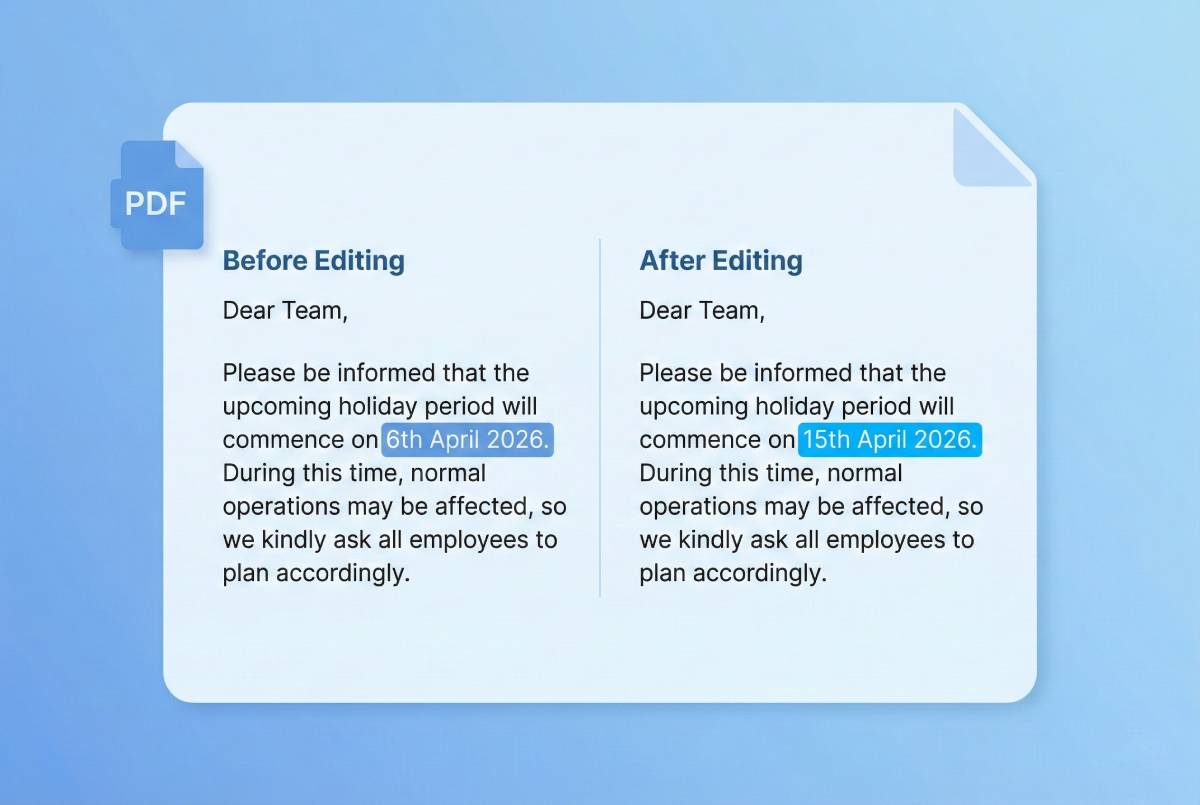
What sets BoostPDF apart is the ability to directly edit the existing text in your PDF. Other tools typically let you only add new text over what’s already there, but here, you can actually modify words, fix spelling errors, adjust dates, or update names without messing up the original layout.
Your files are processed securely on our servers and automatically deleted after completion. Best of all, basic text editing features are free – no watermarks, no registration required.
Game-Changing Technology Our advanced technology makes PDF text fully editable while preserving the original document layout. No other free online tool offers this capability.
How Our Edit Text Feature Works
The Edit Text tool transforms your PDF page into an editable document while keeping everything else intact – images, shapes, and formatting all stay exactly where they are.
Edit Text vs. Add Text: What's the Difference?
It's important to understand the difference between these two features:
- Add Text: Places new text boxes anywhere on your PDF. Great for annotations, notes, or filling in blank spaces. See our Add Text to PDF tool
- Edit Text: Modifies the actual existing text in your PDF. Perfect for corrections, updates, or changes to the original content.
How to Edit Text in a PDF
Follow these simple steps to edit text in your PDF document:
- Open Your PDF File Click the "Select PDF File" button above or drag and drop your PDF into the selection area. Your file loads instantly in our editor.
- Select the Page You Want to Edit Use the page thumbnails on the left side of the editor to navigate to the page containing the text you want to modify.
- Click the Edit Text Tool Find the "Edit Text" button in the toolbar and click it. The page will enter edit mode, making all text on that page editable.
- Make Your Changes Click on any text you want to edit and start typing. You can select text, delete it, replace it, or add more content. The original formatting is preserved.
- Save and Export Your PDF Click "Save Changes" when you're done editing that page. You can edit more pages if needed, add signatures, or make other modifications. When finished, click "Export" to download your edited PDF.
Pro Tip: After saving your text changes, you can continue editing your PDF – add signatures, images, or drawings before exporting the final version.
Why Choose BoostPDF for PDF Text Editing
BoostPDF delivers professional PDF text editing capabilities without expensive software:
- Free to use: Basic text editing features are free with daily usage limits.
- No software to install: Works instantly in Chrome, Firefox, Safari, Edge – any modern browser.
- Simple to use: Intuitive interface that anyone can master in seconds.
- Professional results: Your edited PDFs maintain their original quality and formatting.
Common Uses for PDF Text Editing
Here are some popular reasons people use our Edit Text feature:
🔹 Fix Typos and Spelling Errors
Spotted a spelling mistake in an important document? Fix it instantly without recreating the entire PDF. Perfect for correcting embarrassing errors before sending documents to clients.
🔹 Update Outdated Information
Change dates, prices, phone numbers, addresses, or any information that has changed. Keep your documents current without starting from scratch.
🔹 Modify Contracts and Agreements
Need to change a name, date, or term in a contract? Edit it directly rather than requesting a new version. Always ensure both parties agree to changes.
🔹 Correct Form Submissions
Made a mistake filling out a PDF form? Edit the incorrect fields instead of starting over. For simple form filling, you can also use our fill PDF form tool.
🔹 Update Resumes and CVs
Quickly update job titles, dates, or responsibilities in your PDF resume. No need to access the original document or editing software.
Need More Features? After editing text, you can also add signatures, insert images, draw annotations, and compress files – all in the same editor!
Why Choose BoostPDF for Editing PDF Text?
There are many PDF tools available, but here's why BoostPDF is the best choice for editing text in PDFs:
- Free to Use: BoostPDF offers this feature to its users for free with daily limits. Currently the only PDF site to offer this for free.
- No Registration: Start editing immediately – no account creation or sign-up required.
- No Watermarks: Your exported PDFs are clean and professional, with no BoostPDF branding added.
- Secure Processing: Files are processed securely on our servers and automatically deleted after completion.
- Works Everywhere: Use it on Windows, Mac, Linux, Chromebook, Android, iOS – any device with a browser.
- Preserves Formatting: Your edited PDF maintains its original layout, fonts, and design.
BoostPDF vs. Other PDF Tools
See how BoostPDF compares to other popular PDF editing solutions:
| Feature | BoostPDF | Others |
|---|---|---|
| Edit Existing PDF Text | Free | Paid Only |
| Compression Tool | Free | Paid Only |
| OCR Tool | Free | Paid Only |
| Processing | Local editing for most tools | Server sided only |
| Add New Text to PDF | Yes | Yes |
Frequently Asked Questions
Can I edit existing text in a PDF for free?
Yes! BoostPDF is the only online tool that offers true PDF text editing for free. Basic features have daily usage limits, but you can edit existing text in your PDFs without any cost.
What types of changes can I make to PDF text?
You can modify any existing text in your PDF: change words, fix typos, update dates, correct names, revise paragraphs – essentially any text content can be edited. The original formatting and layout are preserved.
Will editing change the appearance of my PDF?
No, our Edit Text tool is designed to preserve your document's appearance. Images, layouts, and formatting remain intact – only the specific text you modify will change.
Can I edit text on multiple pages?
Yes! After saving changes on one page, simply navigate to another page using the thumbnails and click Edit Text again. You can edit as many pages as you need before exporting.
Is my PDF secure when editing online?
Yes. BoostPDF processes your files securely on our servers with enterprise-grade encryption. All files are automatically deleted immediately after processing is complete, ensuring your documents remain private.
Can I edit PDFs on any device?
Yes! BoostPDF works on any device with a web browser - Windows, Mac, Linux, Chromebook, Android, and iOS. No software installation required.
What if I need to add new text instead of editing existing text?
No problem! BoostPDF also has an Add Text tool for placing new text anywhere on your PDF. You can use both features in the same editing session – edit existing text first, then add new text boxes wherever needed.
Effortless PDF Editing at Your Fingertips
Need to make changes to a PDF? Just upload your file using the button at the top of the page. Then, choose the Edit Text tool and dive right in. It's easy as that.
Whether you want to correct a typo, update some old info, or handle edits on an important document, BoostPDF lets you modify text in your PDFs without the hassle of pricey software subscriptions.
Countless users have found this free online PDF text editor to be their go-to option. No downloads or installations are needed, and no need to sign up either. Experience quick and secure PDF editing right in your browser.