

Need to Sign a PDF? Here's How to Do It Online
We've all been there. Someone sends you a PDF that needs your signature. Maybe it's a contract, a permission form, or an agreement. The old way? Print it out, sign it with a pen, scan it back into your computer, and email it. That's at least 10 minutes of hassle, plus you need a printer and scanner.
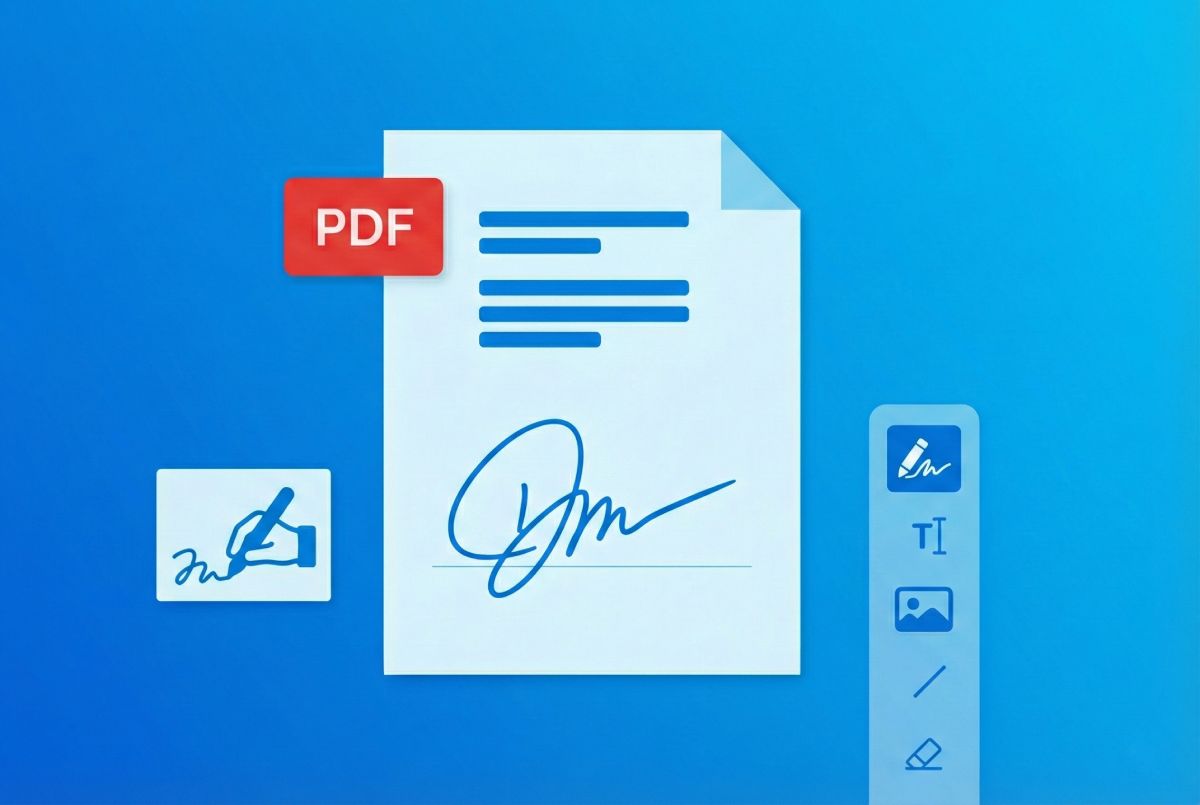
There's a better way. You can sign PDFs right in your browser without printing anything. Draw your signature once, save it if you want, and add it to any document with a single click. The whole process takes about 30 seconds once you know what you're doing.
This guide shows how to add your signature to a PDF in your browser, how to save it for next time, and what to do in the most common situations.
Why Sign PDFs Electronically?
Before we jump into the how-to, let's talk about why electronic signatures make sense:
It's Faster
No printing, no scanning, no trips to the printer. Open the PDF, sign it, and send it back. Done in under a minute.
It's Paperless
Save paper, ink, and the environment. Electronic signatures eliminate the need for physical documents entirely.
It's Legal
In most countries, electronic signatures are legally binding. They're valid for contracts, agreements, and most official documents under laws like the ESIGN Act (US) and eIDAS (EU).
It Works Anywhere
On your laptop, phone, or tablet. No matter where you are, you can sign a document as long as you have a browser.
You Can Reuse Your Signature
Draw your signature once, save it, and use it on every future document. No need to redraw it every time.
It's Secure
Your documents are processed in your browser. Nothing gets sent to our servers, so your sensitive files stay private. For extra protection on sensitive documents, you can also encrypt your PDF with a password.
How to Sign a PDF: Step-by-Step
Here's the whole process, step by step:
- Open Your PDF Drag your PDF file into the box above, or click "Choose PDF File" to browse. Your document opens in the editor immediately. You'll see the full PDF displayed on your screen.
- Open the Signature Window When you come from this page, the Signature window opens by itself. Later, open it again with the Sign tool in the editor. It has two tabs: Draw, for a new signature, and Saved, for the ones you kept.
- Customize Your Signature (Optional) Before you draw, set the pen: a slider sets how thick the line is, and you can pick black, blue or red ink. Most people use black or blue for a professional look.
- Draw Your Signature Draw your signature above the line with your mouse, or with your finger or a stylus on a touchscreen. Write it as you would on paper. Not happy with it? Click Clear and draw it again.
-
Choose How to Save It
Below the drawing area there's a Save for next time box:
Leave it unticked to use the signature for this document only. It isn't kept anywhere.
Tick it to keep the signature in this browser, so it's ready in the Saved tab next time. It's stored on your device, not on our servers. - Place Your Signature on the PDF Click Use signature, then click the page where it should go. Drag it to move it, and drag a corner handle to resize it. Place it exactly on the signature line.
-
Export Your Signed PDF
When it's in the right place, click Export. Your signed PDF downloads to your device, ready to email, save or print.
Tip: If your signed PDF is too large for email, you can compress it for email.
Pro Tip: If you sign documents often, tick Save for next time when you draw your signature. Next time, pick it in the Saved tab and sign with a single click.
Video Demo
Customizing Your Signature
Two settings change how your signature looks: the pen size and the ink colour.
🖊️ Pen Thickness
A slider sets how thick the line is, from fine to bold:
- Fine: A delicate, light signature. Good if you have neat handwriting and want a refined look.
- Middle: Where the slider starts. Works for most signatures and looks balanced.
- Bold: A bold, prominent signature. Good if you want your signature to stand out or if you're signing on a small device and need thicker lines for clarity.
Most people leave it near the middle. If your signature looks too faint, move the slider up; if it looks clumsy, move it down.
🎨 Pen Color
There are three ink colours:
- Black: The most common choice. Professional and works on any document.
- Blue: Traditional for contracts and legal documents. Some organizations specifically request blue ink to distinguish originals from copies.
- Red: Useful for corrections or for marking a signature that should stand out. For contracts and official documents, stick to black or blue.
✏️ Redrawing Your Signature
Made a mistake? Click Clear under the drawing area and the pad is empty again. Redraw as many times as you like.
Note: Your signature doesn't have to be perfect. It just needs to be recognizable as yours. Most people's electronic signatures look a bit different from their pen-and-paper versions, and that's totally fine.
Should You Save Your Signature?
Under the drawing area there's a Save for next time box. Here's when to tick it:
Unticked: For This Document Only
The signature is used for this document only. Once you close the editor, it's gone, and next time you draw it again.
When to use this: If you're on a shared or public computer and don't want your signature saved on the device. Or if you rarely sign PDFs and don't mind redrawing your signature each time.
Ticked: Saved for Next Time
The signature is kept in this browser. Next time you open the Signature window, it's in the Saved tab, ready to use without drawing it again.
When to use this: If you're on your personal device and you sign PDFs regularly. It's a huge time-saver. Your signature is stored locally on your device—it never leaves your browser.
Is It Safe to Save Your Signature?
Yes, if you're using your own device. Your saved signature is stored in your browser's local storage, which means it stays on your computer or phone. It's not sent to any server, and other people can't access it unless they have physical access to your device.
On a shared computer (at a library or office), leave Save for next time unticked so your signature isn't left behind.
Common Signing Scenarios (And How to Handle Them)
Here's how to handle the situations people run into most:
✍️ "I need to sign in multiple places"
Open the Sign tool again after placing the first signature. If you saved it, pick it in the Saved tab. You can place as many signatures as you need, and move and resize each one on its own.
✍️ "The signature is too big/too small"
After you place your signature on the PDF, you'll see corner handles around it. Click and drag a corner handle to resize it. Hold Shift while dragging to maintain the signature's proportions (so it doesn't get stretched or squished). Make it as big or small as you need to fit the signature line.
✍️ "I placed the signature in the wrong spot"
Just click on the signature and drag it to the correct position. You can move it anywhere on the page. If you want to delete it entirely, select it and press the Delete key or look for a delete/trash icon.
✍️ "I need to add initials, not a full signature"
Draw your initials instead of your full signature. You can save both: each one you save appears in the Saved tab, so pick whichever the document needs.
✍️ "I'm signing on my phone and it's hard to draw"
Drawing with your finger can be tricky. A few tips: If you also need to fill out form fields, check out our guide on filling PDF forms on your phone.
- Use a thicker pen setting so the lines are easier to see
- Write larger than you normally would. You can resize it down after placing it on the PDF
- If you have a stylus, use it. It's much more precise than a finger
- Take your time. You can always clear and redraw
Quick Tip: If you're signing multiple PDFs in a row, keep the editor open in your browser. You can open the next PDF without starting over, and your saved signature will still be available.
Are Electronic Signatures Legally Binding?
This is a common question, and the short answer is: yes, in most cases.
In the United States, electronic signatures are legally binding under the Electronic Signatures in Global and National Commerce (ESIGN) Act, passed in 2000. In the European Union, they're recognized under the eIDAS regulation. Most other countries have similar laws.
Electronic signatures are valid for:
- Employment contracts
- Sales agreements
- Lease agreements
- Business contracts
- Permission forms
- Non-disclosure agreements (NDAs)
- Most other types of legal documents
There are a few exceptions where electronic signatures might not be accepted:
- Wills and trusts (in some jurisdictions)
- Court orders
- Some government documents
- Adoption papers
- Divorce decrees
If you're unsure whether an electronic signature is acceptable for a specific document, check with the requesting party or consult a legal professional.
What If I Make a Mistake After Exporting?
If you export your signed PDF and then realize you made a mistake (signature in the wrong place, misspelled something else, etc.), don't worry. Just reload the original PDF into the editor and sign it again. Your original unsigned document doesn't change when you export—it creates a new file.
This is one of the advantages of electronic signing. With a physical signature, you'd have to start over with a fresh printout. Here, you can just re-open the file and fix whatever needs fixing.
Troubleshooting: When Things Don't Work as Expected
❓ "The Sign tool isn't showing up"
Make sure your PDF has fully loaded. Large files can take a moment. You should see page thumbnails on the left sidebar. If you don't see the Sign tool after the PDF loads, try refreshing your browser.
❓ "I can't draw my signature smoothly"
This usually happens on trackpads or when using a finger on a small screen. Try these fixes:
- Draw slower. Quick strokes can cause jagged lines
- Use a thicker pen setting
- If you're on a laptop, use a mouse instead of a trackpad
- On mobile, use a stylus if you have one
❓ "My saved signature disappeared"
Saved signatures are stored in your browser's local storage. If you cleared your browser cache or browsing data, your signature was deleted. You'll need to redraw and save it again. To prevent this in the future, avoid clearing your browsing data, or at least uncheck "cookies and site data" when you do.
❓ "The signature looks pixelated or blurry"
If your signature looks fuzzy after you export, try redrawing it with smoother, more deliberate strokes. Also, make sure you're not resizing it too much after placing it. Enlarging a signature significantly can make it look pixelated.
❓ "Can I change my saved signature?"
Yes. Open the Sign tool and go to the Saved tab. Delete the old signature there, then draw a new one with Save for next time ticked.
Frequently Asked Questions
Is it free to sign PDFs online?
Yes. Without an account you can sign 2 PDFs a day for free, with no watermark. BoostPDF Pro removes the limit.
Are electronic signatures legally binding?
In most countries, yes. Electronic signatures are legally recognized under laws like the ESIGN Act in the United States and eIDAS in the European Union. They're valid for most contracts, agreements, and official documents. For highly sensitive legal matters (like wills or court documents), it's best to consult a legal professional to confirm whether an electronic signature is acceptable.
Can I save my signature for future use?
Yes. When you draw your signature, tick Save for next time. It's kept in your browser, and next time you pick it in the Saved tab instead of drawing it again. It stays on your device and is never sent to our servers.
Does signing PDFs work on mobile devices?
Yes. Open the PDF in your phone or tablet browser and draw your signature with your finger. A stylus makes it easier to draw precisely, but you don't need one.
Are my documents secure when I sign them online?
Yes. Your PDFs are processed directly in your browser. Files stay on your device and all processing happens locally. We don't store, view, or have any access to your documents or signatures. When you close the editor, everything is cleared from memory.
Can I add multiple signatures to the same PDF?
Yes! After placing your first signature, just click the Sign tool again to add another one. You can add as many signatures as you need on a single document. Each signature can be resized and repositioned independently. This is useful for documents that require initials in multiple places or multiple signers.
What if I don't like how my signature looks?
Click Clear and draw it again, as many times as you want. Change the pen size or ink colour to get the look you want. It doesn't have to be perfect, just recognizable as yours.
Can I use a signature image I already have?
If you have an image file of your signature (like a PNG or JPEG), you can add it to your PDF using the image insertion tool instead of the Sign tool. This lets you use a pre-existing signature image rather than drawing a new one.
Do I need to create an account?
Nope! You can start signing PDFs right away without creating an account or signing up. Everything works in your browser. If you save your signature, it's stored locally on your device, not in an online account.
Wrapping Up
Signing PDFs online is one of those things that feels complicated until you do it once. Then it's obvious. Open the PDF, click the Sign tool, draw your signature, place it on the page, and export. Done. No printing, no scanning, no wasted time.
If you sign documents regularly, save your signature in the browser. You'll thank yourself later when you can sign a document in under 30 seconds. And if you're worried about security, remember that everything happens in your browser. Your files and signatures never leave your device.
Need to add text, dates, or other content alongside your signature? Our full PDF editor lets you add text, images, and annotations to any document.
Got a document that needs signing? Go ahead and open it in the box at the top of this page. It takes about 10 seconds to load, and then you're ready to add your signature. No account, no hassle, no problem.
Related PDF Tools
After signing your PDF, you might find these tools useful:
- Fill PDF Forms on Phone – Complete forms and add signatures on mobile devices
- Add Text to PDF – Type names, dates, or notes alongside your signature
- Compress PDF for Email – Reduce file size to send signed documents faster
- Merge PDF Files – Combine multiple signed documents into one PDF