What is OCR and Why Do You Need It?
You've got a PDF that's just a scanned image. Maybe it's a contract someone photographed with their phone. Or old documents you digitized with a scanner. The problem? You can't search for words. You can't highlight text. You can't copy-paste anything. It's essentially a picture file pretending to be a document.
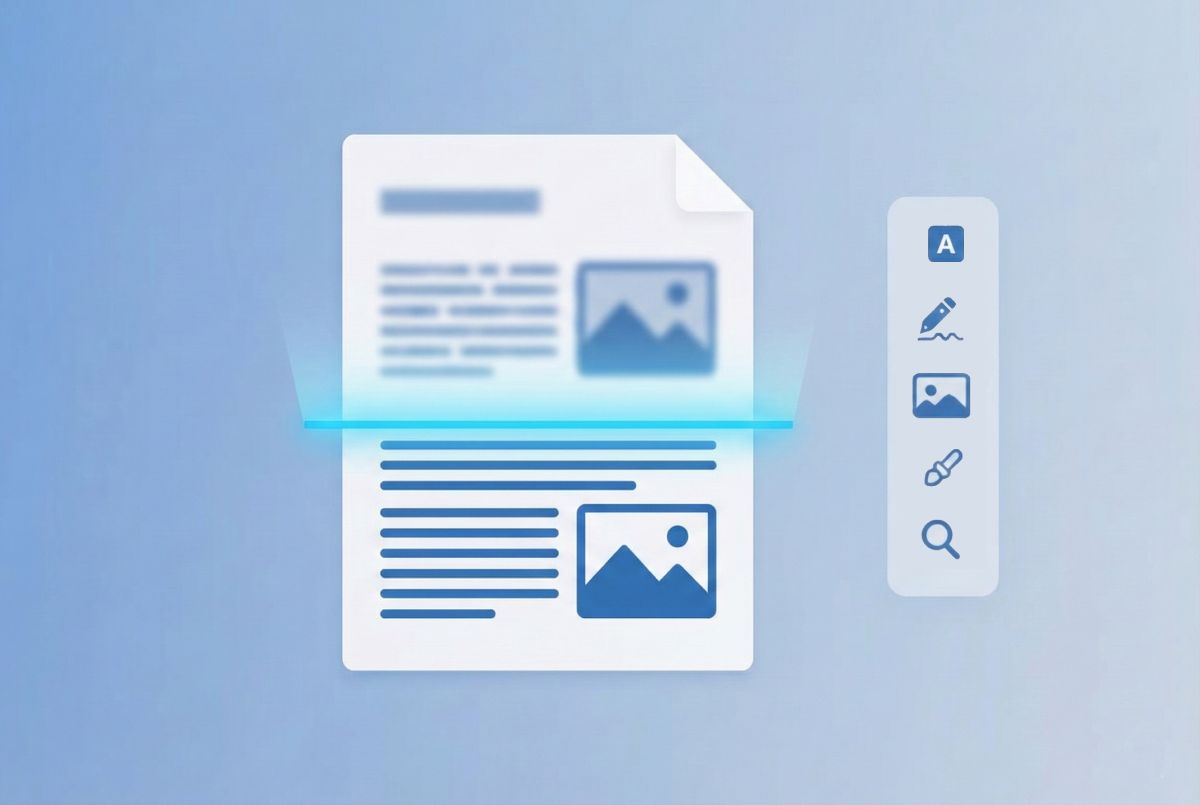
That's where OCR comes in. OCR (Optical Character Recognition) reads the letters in the picture and turns them into real text. BoostPDF puts that text in an invisible layer under each page: the page looks exactly as before, but now you can search it with Ctrl+F, select words and copy them.
Below I'll show you how to make a scanned PDF searchable with BoostPDF, which settings to use, and how to get the best results, whether you're dealing with scanned contracts, photographed receipts or old archived documents.
How to Use the OCR Tool
Making a scanned PDF searchable takes a minute or two. Here's how:
- Choose Your PDF Click Choose PDF File above, or drop your file onto it. Scanned PDFs up to 50 MB (100 MB with Pro) and 500 pages work. The PDF opens in the BoostPDF editor with the OCR window ready.
- Choose What You Need Pick Make the PDF searchable to get the same PDF back with text you can search and select. Pick Copy the text if you only want the words of some pages, to copy them or save them as a text file.
- Select the Language Choose the language of your document. If you came from the OCR page in your language, it's already selected. The right language matters more than any other setting.
- Check the Clean-Up Options Turn pages upright is on, so sideways and upside-down scans are read correctly. Tick Straighten crooked pages or Remove specks only when your scan needs them (see the settings below).
- Let It Read Your PDF is sent over an encrypted connection and read on our server. The window shows the progress page by page, for example Reading page 12 of 59. A page takes a few seconds, a long scan a few minutes. Keep the tab open until it's done.
- Download or Keep Working Click Download to save the searchable PDF under the name you chose, or Open in editor to keep working on it, for example to highlight, annotate or sign it.
That's it. Your pages look exactly like your scan, but under each one there's now an invisible layer of text, so Ctrl+F finds words and you can select and copy them.
Video Demo
When Do You Need OCR?
Not every PDF needs OCR. Here's how to tell if yours does:
✅ You NEED OCR if:
- You scanned paper documents: Unless your scanner's software adds OCR, every page is just a picture. OCR makes it searchable.
- You photographed documents with your phone: Phone cameras create image files. OCR converts them to text.
- You can't select or copy text: Try selecting text in your PDF. If nothing highlights, you need OCR.
- Search doesn't work: Press Ctrl+F (Cmd+F on Mac). If search finds nothing, your PDF needs OCR.
- You have old archived documents: Historical scans were often done before OCR was standard. Add it now for searchability.
❌ You DON'T need OCR if:
- Your PDF was created from Word/Excel/etc: These already have text layers. OCR won't help.
- You can already select and copy text: The PDF already has searchable text. OCR is redundant.
- Search already works: If Ctrl+F finds text, OCR was already applied or the PDF is text-based.
- The PDF is just images you want to keep as images: Photo collections, artwork, diagrams don't benefit from OCR.
Quick Test: Open your PDF and try to select some text with your mouse. If you can highlight and copy it, you don't need OCR. If nothing happens or you can only select the whole page as an image, you need OCR.
OCR Settings Explained
Language Selection
The most important setting is language. OCR works by recognizing character patterns, and different languages have different character sets and patterns. Choosing the correct language dramatically improves accuracy.
The 19 languages: English, Spanish, French, German, Italian, Portuguese, Dutch, Polish, Turkish, Russian, Chinese (Simplified and Traditional), Japanese, Korean, Thai, Vietnamese, Arabic, Hebrew and Hindi. Japanese is read both across the page and in vertical columns, as in books.
What if my document has multiple languages? Choose the language most of the document is in. Text in other languages is still read, but with more mistakes.
Make the PDF Searchable or Copy the Text
The OCR window offers two ways to use it:
- Make the PDF searchable (recommended): You get the whole PDF back with an invisible text layer under each page. The pages look the same, and the file works in any PDF reader. Pages that already have text are left as they are.
- Copy the text: Reads only the pages you choose (this page, all pages, or a list like 1-3, 5) right in your browser, so the PDF isn't uploaded. You can copy the text or save it as a .txt file. Tick More accurate for small print; it's slower.
Clean-Up Options
For a searchable PDF, four options decide what happens to the pages:
- Turn pages upright (on): Pages scanned sideways or upside down are read in the right direction and turned so they display upright.
- Straighten crooked pages (off): Redraws pages scanned at an angle so they're straight. Leave it off unless the tilt bothers you: OCR reads slightly crooked scans well, and redrawing saves photos again at a lower quality and can make the file larger.
- Remove specks (off): Cleans dots and dust from the copy of the page that OCR reads, which can help with dirty scans. Your pages themselves aren't changed. It makes OCR slower.
- Read pages that have text (off): Pages that already have text are normally left alone. Tick this to read every page again, for example when a scan's old OCR text is wrong. Every page is then saved as a picture with new text.
Getting the Best OCR Results
OCR accuracy depends heavily on source quality. Here's how to get the best results:
Use High-Quality Scans
Higher resolution = better accuracy. Scan at 300 DPI or higher if possible. Phone photos should be well-lit and in focus. Blurry or low-resolution scans produce poor OCR results.
Ensure Straight Alignment
OCR reads slightly crooked scans well, but badly tilted pages cause mistakes. Scan pages straight if you can, or tick Straighten crooked pages in the OCR window.
Check Contrast
OCR needs clear distinction between text and background. Black text on white background is ideal. Faded documents or low-contrast scans reduce accuracy. Adjust brightness/contrast before OCR if needed.
Choose the Right Language
Wrong language = poor results. Double-check your language selection. If results are gibberish, you probably selected the wrong language.
Understand Font Limitations
OCR works best with standard fonts. Handwriting, decorative fonts, or very small text may not be recognized accurately. Standard typed documents work best.
Review After Processing
OCR isn't perfect. Open your processed PDF and spot-check a few sections. Search for a word you know is in the document. If it doesn't find it, OCR may have misread it.
Common OCR Problems and Solutions
❓ "OCR completed but I still can't search"
First check that you chose the right language. If some pages already had text, even a little, like a stamp or page number added by software, they were left as they were: tick Read pages that have text and run OCR again. For very poor scans, try scanning again at a higher resolution.
❓ "Text is recognized but it's gibberish"
You probably selected the wrong language. If you chose English but the document is in Spanish, OCR will produce nonsense. Reprocess with the correct language.
❓ "Only some pages worked"
Pages differ in quality: clean, sharp pages read well, while blurry or dark ones fail. Scan the problem pages again at a higher quality, or use Copy the text on just those pages.
❓ "It's taking forever"
OCR takes a few seconds per page, so a 100-page scan takes several minutes. The window shows which page it's reading; keep the tab open. If you only need part of a long document, split it first and OCR just those pages.
❓ "Some words are wrong"
OCR accuracy is rarely 100%, especially with poor scans. You might get 95% accuracy on good scans, meaning 1 in 20 words has an error. For critical documents, proofread important sections after OCR.
❓ "Numbers and special characters are wrong"
OCR struggles with numbers and symbols more than letters. A "1" might be read as "l" or "I". A "0" might be "O". Check numbers carefully if they're critical (like in financial documents).
Real-World OCR Use Cases
📄 Example 1: Scanned Legal Contracts
Situation: You received a 30-page scanned contract. You need to find specific clauses quickly.
Solution: OCR the entire document in English (or appropriate language). Once processed, search for keywords like "termination," "payment terms," or specific dollar amounts. Find what you need in seconds instead of reading 30 pages.
📑 Example 2: Old Company Records
Situation: Your company has hundreds of archived scanned documents from 10 years ago. Finding specific information is nearly impossible.
Solution: OCR each document once. Then you can search them for customer names, project numbers or dates. What used to take hours of manual searching now takes seconds.
📋 Example 3: Research Papers
Situation: You have scanned PDFs of old academic papers. You want to copy quotes into your own research.
Solution: OCR the papers. Now you can select and copy quotes directly instead of retyping them manually. Saves time and reduces transcription errors.
🧾 Example 4: Receipt Management
Situation: You photographed receipts with your phone for expense reports. You need to find a specific purchase later.
Solution: Turn the photos into a PDF with JPG to PDF, then OCR it. Now you can search for merchant names, amounts or dates and find the receipt you need instantly.
OCR Accuracy: What to Expect
Here's realistic accuracy levels based on source quality:
| Source Quality | Expected Accuracy | What This Means |
|---|---|---|
| Excellent (300+ DPI, clear text) | 98-99% | Nearly perfect. Occasional minor errors. |
| Good (200-300 DPI, clean scan) | 95-98% | Very good. Most words correct, few errors. |
| Fair (150-200 DPI, some blur) | 85-95% | Decent. Noticeable errors but still useful. |
| Poor (low resolution, faded) | 70-85% | Many errors. Needs manual correction. |
| Very Poor (blurry, dark) | Below 70% | Unreliable. Consider rescanning. |
Your Files Stay Private
Encrypted upload. To make a PDF searchable, it's sent to our server over an encrypted HTTPS connection and read there automatically. Nobody looks at it.
Deleted automatically. Your PDF is deleted as soon as OCR finishes. The searchable PDF is deleted when you download it, or after an hour if you don't.
Or keep it on your device. Copy the text reads the pages in your browser, so the PDF never leaves your device.
Frequently Asked Questions
What is OCR for PDF?
OCR (Optical Character Recognition) converts scanned images of text into actual searchable, selectable text. It makes image-based PDFs searchable and editable by recognizing characters in the image.
Is OCR free?
Yes. You can use OCR twice a day for free, without an account and with no watermark. BoostPDF Pro gives you far more OCR, with fair-use limits, and files up to 100 MB.
What languages are supported?
19: English, Spanish, French, German, Italian, Portuguese, Dutch, Polish, Turkish, Russian, Chinese (Simplified and Traditional), Japanese (including vertical text), Korean, Thai, Vietnamese, Arabic, Hebrew and Hindi. Choose your document's language before you start.
Can I OCR only some pages?
A searchable PDF covers the whole file, but pages that already have text are left as they are, so mixed documents are fine. To read only some pages, use Copy the text and choose them, or split the PDF first and OCR just the part you need.
How accurate is the OCR?
Accuracy depends on scan quality. Clear, high-resolution scans produce excellent results (95-99% accuracy). Blurry or low-quality scans may have errors that need manual correction.
Does OCR change how my PDF looks?
No. With the standard settings every page stays exactly as it was; only an invisible text layer is added. Sideways or upside-down pages are turned to display upright. If you tick Straighten crooked pages, tilted pages are redrawn straight.
Can OCR read handwriting?
OCR works best with typed or printed text. Handwriting recognition is much less accurate and may not work at all depending on handwriting style. Very neat handwriting might work, but expect errors.
How long does OCR take?
A page takes a few seconds, so a 50-page scan takes a few minutes. The window shows which page is being read, up to 500 pages per PDF. Pages that already have text are skipped, so they take almost no time.
How large a PDF can I OCR?
Up to 50 MB and 500 pages, or up to 100 MB with BoostPDF Pro. For a larger file, compress it or split it into parts first.
Is my PDF uploaded, and what happens to it?
To make it searchable, your PDF is sent to our server over an encrypted connection. It's deleted as soon as OCR finishes, and the searchable PDF is deleted when you download it, or after an hour. Nobody looks at your files. Copy the text works in your browser, so the PDF isn't uploaded at all.
What happens to pages that already have text?
They're left exactly as they are, with their own text, and only the scanned pages are read. To replace old OCR text that's wrong, tick Read pages that have text.
Related Tools
- JPG to PDF — turn photos of documents into a PDF, then OCR it
- Split PDF — keep only the pages you need before OCR
- PDF to Word — turn a PDF into a document you can edit
- Compress PDF — make a large scan smaller
- Chat with PDF — ask questions about a long document
Wrapping Up
Making scanned PDFs searchable doesn't have to be complicated. Choose your PDF, pick the language, and BoostPDF reads it page by page. A few minutes later, your scan is fully searchable and looks exactly the same.
Remember that OCR quality depends on your source. Clean, high-resolution scans produce excellent results. Blurry or poor-quality scans will have errors. When accuracy matters, always review your OCR'd documents for mistakes.
Got a scanned PDF that needs to be searchable? Upload it above and see how easy OCR can be. No software download, no account signup, just straightforward text recognition.